
🧩 Custom Modules *NEW*
📌 Overview
Modules are reusable video content blocks in the Hue admin portal, managed under the Modules tab. Every module type is created and configured the same way. The type you choose at creation only sets the module's layout and size. A module can be built from the Modules tab directly, or enabled and configured from a specific product's detail page. Once created, its embed code can be placed on a product page, homepage, collection page, or any other page on your site.
💡 When Might You Want to Use This?
- You want to create a reusable video module (playlist or single review) that isn't tied to a specific product.
- You want to place a module somewhere other than a product page, like a homepage or collection page.
- You want to enable and configure a module for an individual product, including pulling in content from another product via content mapping.
- You need to preview how a module will look before it goes live.
🪜 Creating a Module from the Modules Tab
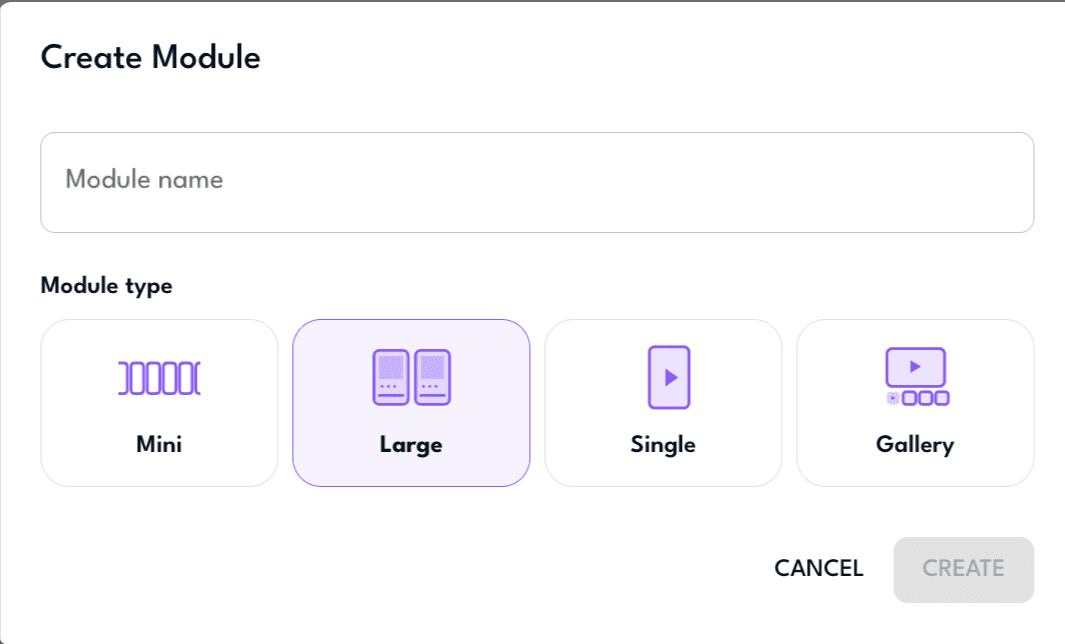
- Create the module
- Open Modules from the left-hand navigation.
- Click Add Module (top right).
- Choose the module type. This sets the module's layout and size (Mini, Large, Single, or Gallery).
- Enter a module name.
- Click Create.
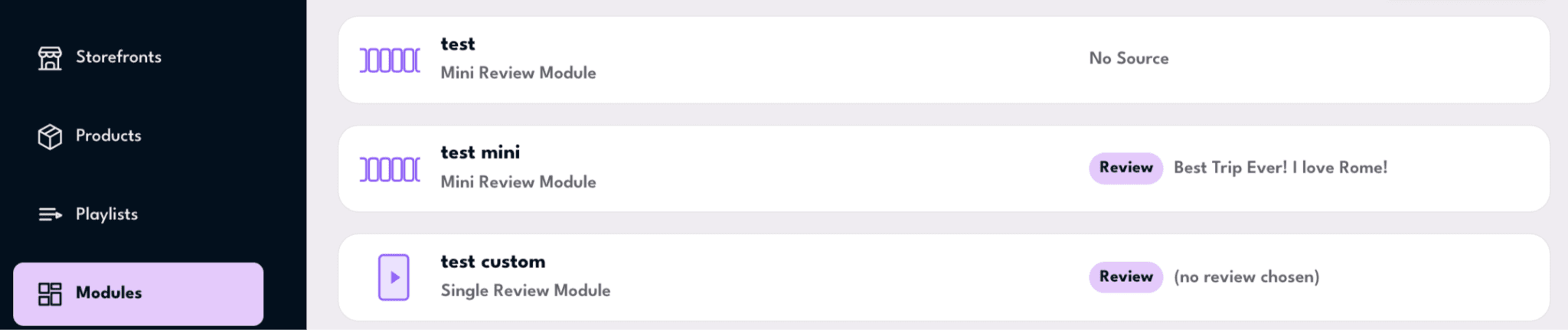
- Open the editor
- Click the new (or any existing) module in the modules list to open it.
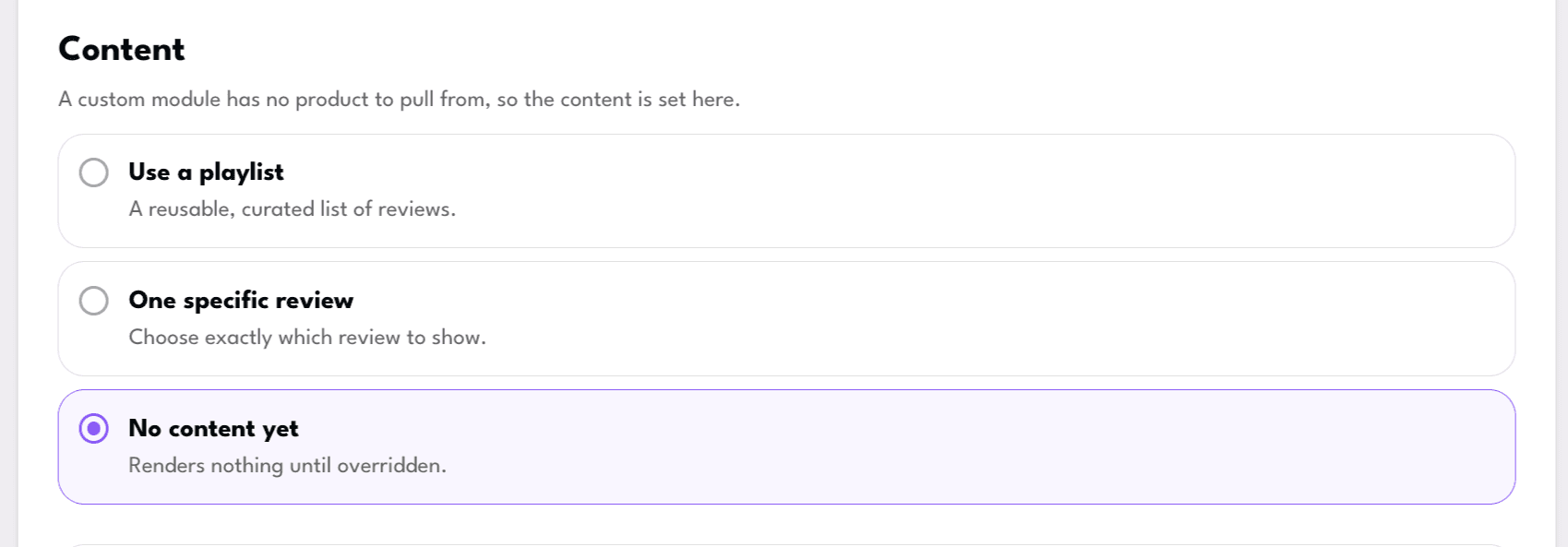
- Choose one content approach. These options are mutually exclusive, so selecting one replaces the other. A custom module has no product to pull from, so its content must be set manually here.
- Use a Playlist: a reusable, curated list of reviews.
- Choose the Use a Playlist content option.
- Click Select Playlist.
- Pick a playlist from the list, or create a new one.
- One Specific Review: choose exactly which review to show.
- Choose the One Specific Review option.
- Click Choose a Review.
- Pick a review from the picker. You can search for the one you need.
- Click Use This Review to confirm.
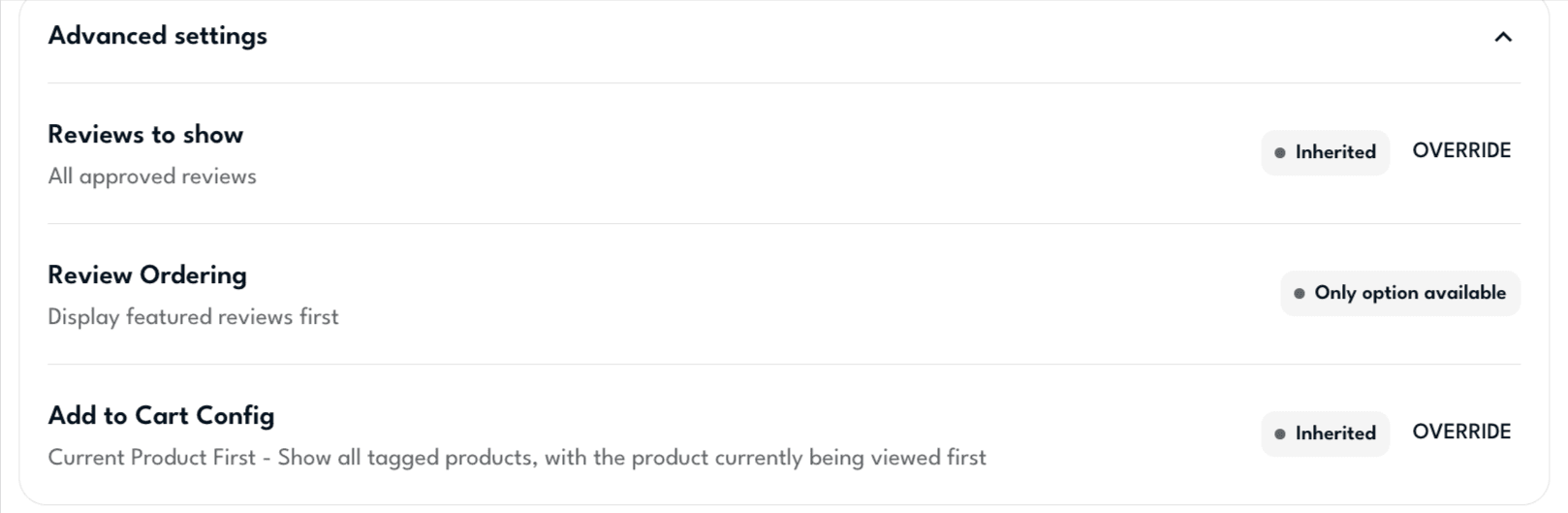
- Finish and check
- Open Advanced Settings to review extra options. You can choose which reviews to show (all approved, or featured only), review ordering, and how tagged products are displayed (e.g. current product first).
- Click Preview to see the module as it will appear. If any reviews are still in draft, switch to Demo Mode to preview them.
🔗 Getting the Embed Code
Once a module is created from the Modules tab, you can grab its embed code and place it anywhere on your site, such as a product page, homepage, collection page, or any other page.
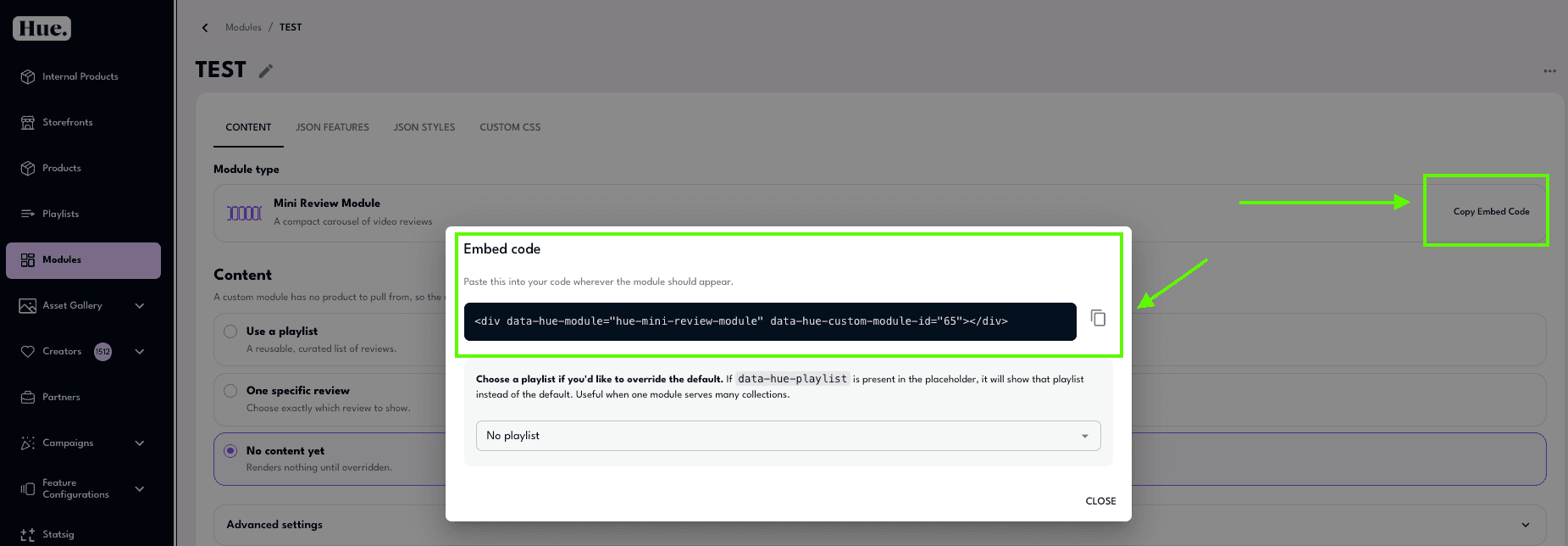
- From inside the module's editor (same screen as Module type and Content), click Copy Embed Code.
- This opens a modal with a snippet like:
html
<div data-hue-module="hue-gallery-asset" data-hue-custom-module-id="xxxx"></div>
Paste this into your site's code wherever you want the module to appear. 3. From this same modal, you can also choose a playlist to override the module's default content. If data-hue-playlist is present in the placeholder, it will show that playlist instead of the default. This is useful when one module serves many collections. 4. Click the copy icon next to the snippet, then Close.
🪜 Creating or Adding a Module from the Products Tab
This flow runs in four phases: enable the module, set its content source, attach content, then check settings and preview.
- Enable the module (from the Products list)
📝 Note: Quizzes need to be configured by Hue admins.
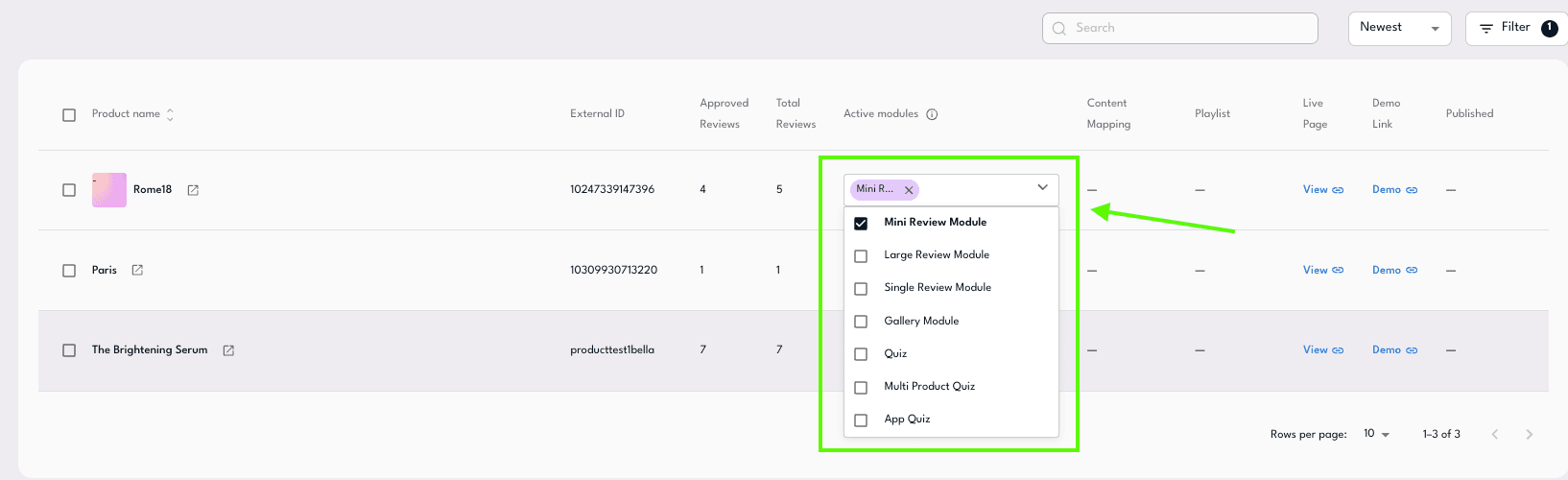
- In Products, click + Select Module on the product's row.
- Pick the desired module from the dropdown.
- Tick its checkbox to enable it for the product.
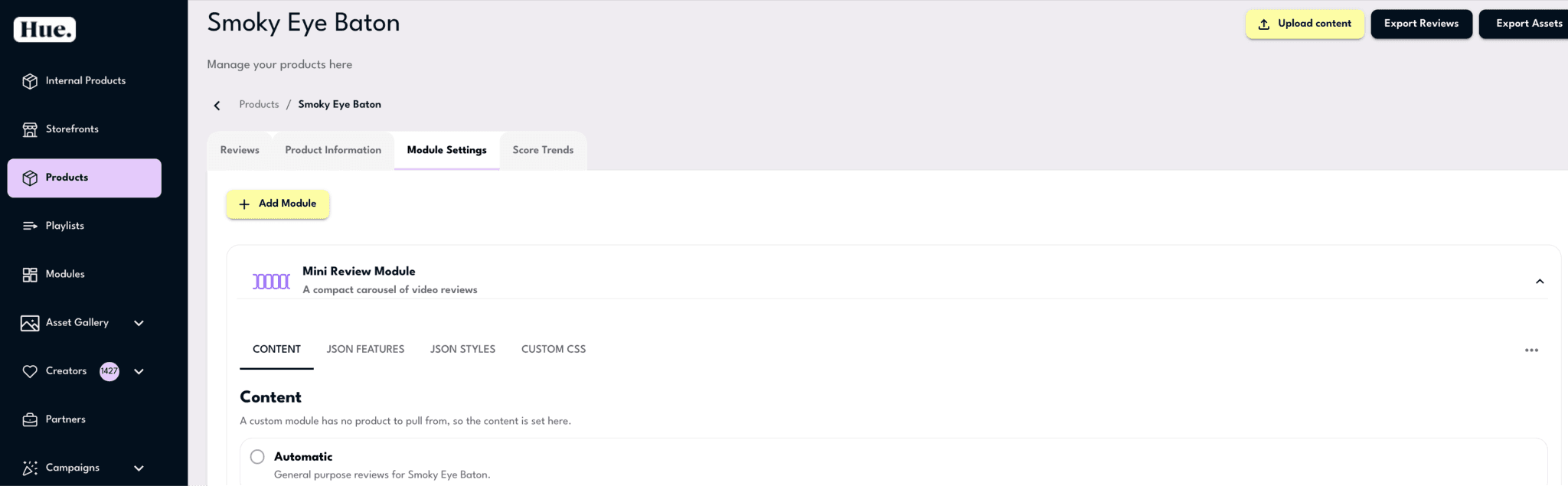
- Open the module settings (from the product's detail page)
- Click the product name (for example, "Smoky Eye Baton") to open its detail page.
- Open the Module Settings tab.
- Click, or add, the desired module to expand its settings.
- Choose one content approach. These options are mutually exclusive, so selecting one replaces the other.
- Automatic Product Content: pulls general-purpose reviews for the current product automatically.
- Content Mapping: pulls reviews from a different product.
- Choose the source product.
- Click Select Product.
- Find the desired storefront.
- Pick a product that has content.
- Use a Playlist: a reusable, curated list of reviews.
- Choose the Use a Playlist content option.
- Click Select Playlist.
- Pick a playlist from the list, or create a new one.
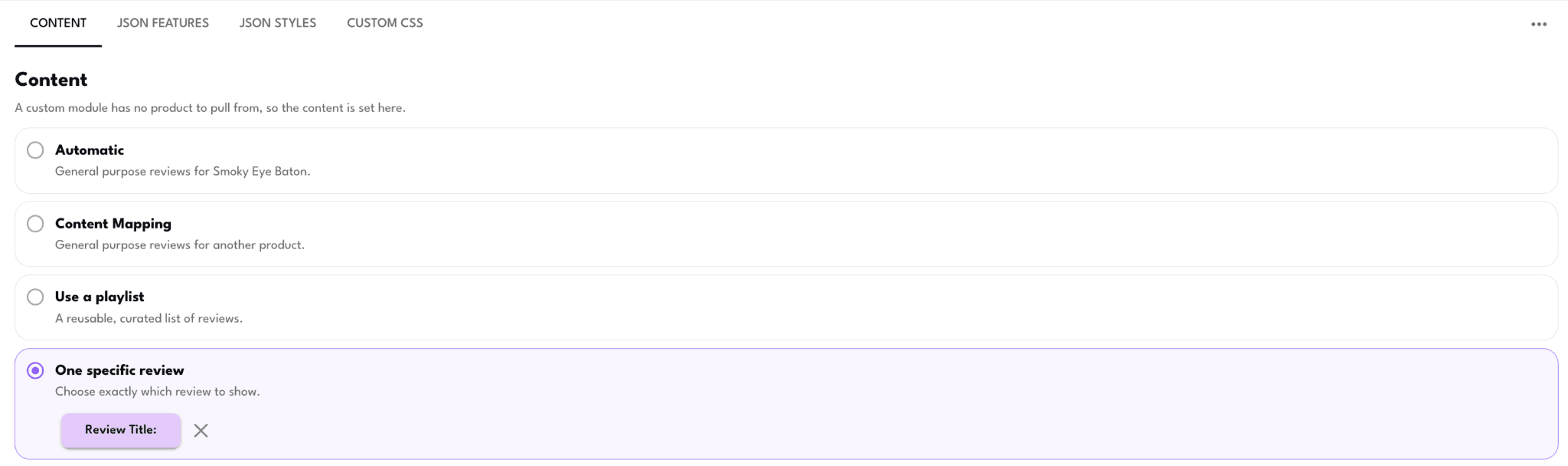
- One Specific Review: choose exactly which review to show.
- Choose the One Specific Review option.
- Click Choose a Review.
- Pick a review from the picker. Reviews are grouped into All Reviews and Product Reviews, and you can search for the one you need.
- Click Use This Review to confirm.
- Finish and check
- Open Advanced Settings to review extra options. You can choose which reviews to show (all approved, or featured only), review ordering, and how tagged products are displayed (e.g. current product first).
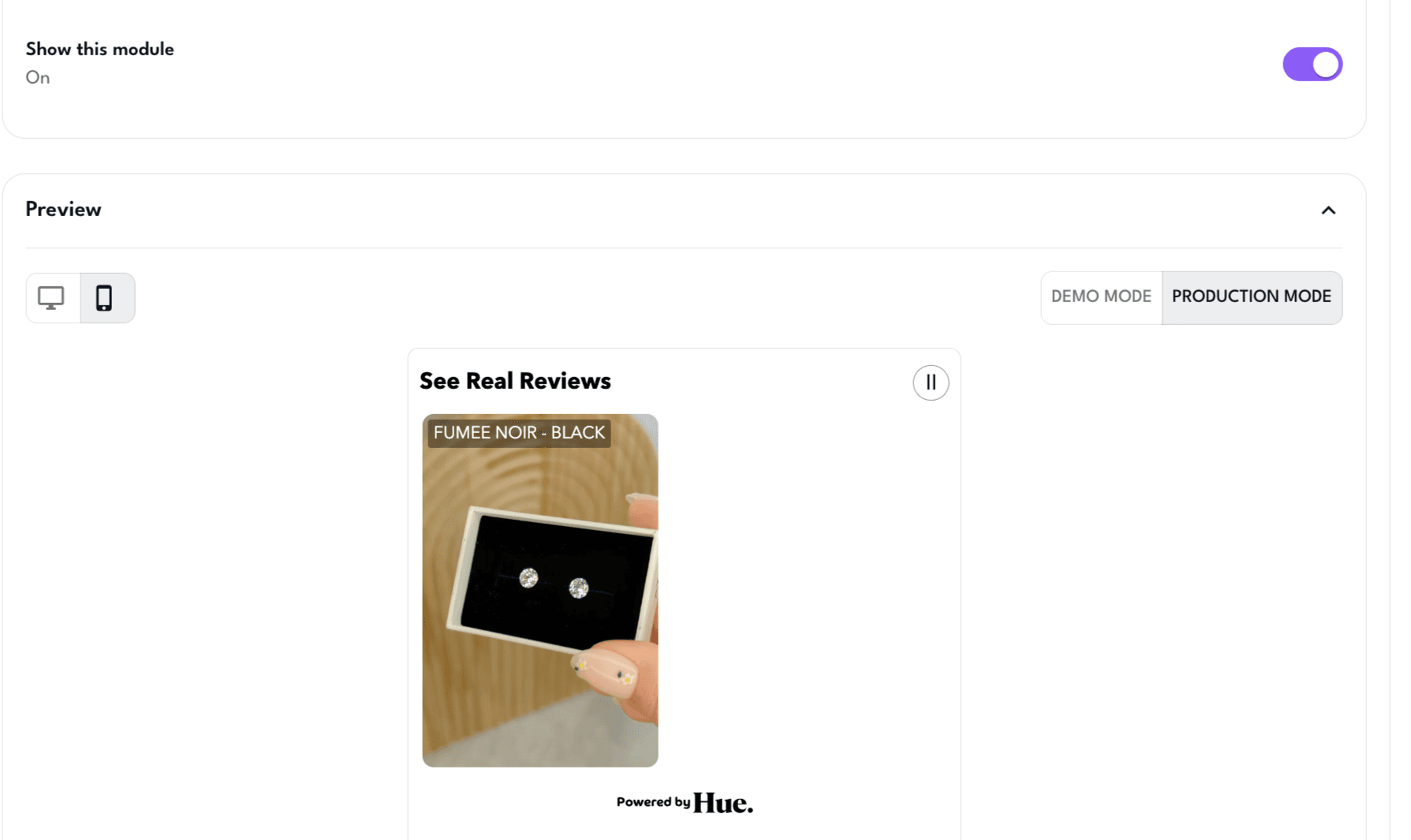
- Make sure Show This Module is turned on, then click Preview to see the module as it will appear. If any reviews are still in draft, switch to Demo Mode to preview them. 📝 Note: If Show This Module is off, the preview won't work and the module won't be visible on the PDP in your store.
📝 Good to Know
- A module created directly on a product is tied to that product, so it can pull content automatically from it.
- A custom module (created from the Modules tab) has no product to pull from, so its content must be set manually in the module editor.
- Content source options are mutually exclusive. Choosing a new one replaces whatever was previously selected.
🛠️ Troubleshooting
My module preview isn't showing anything
- If reviews are still in draft status, switch to Demo Mode to preview them.
My module isn't appearing on the PDP in my live store
- Check that Show This Module is toggled on in the module's settings. If it's off, the module won't display and the preview won't work either.
I selected a playlist, but now I want to switch to a specific review (or vice versa)
- These content options are mutually exclusive, so selecting a new one will automatically replace your previous selection.
I embedded a module on a page but it's showing the wrong content
- Check whether
data-hue-playlistis present in the embed snippet. If it is, the module will show that playlist instead of its default content.